Windows
Installs in under a minute
Create GST-ready PDF invoices offline. No account, no subscription.
Other platforms: Windows, macOS & Linux
Every build is the same free invoicing and billing app. Pick the file for your computer.
Installs in under a minute
Drag into Applications
DEB or AppImage · x86_64
Or install from the terminal
curl -fsSL https://invoiso.co.in/install.sh | bash -s -- --deb
Looking for previous releases? All releases on GitHub · Changelog
Three steps and you're creating invoices in under a minute.
Open the downloaded invoiso-x.x.x-windows-setup.exe. If Windows SmartScreen appears, click More info → Run anyway.
The default options are fine. Click Install; it finishes in under a minute.
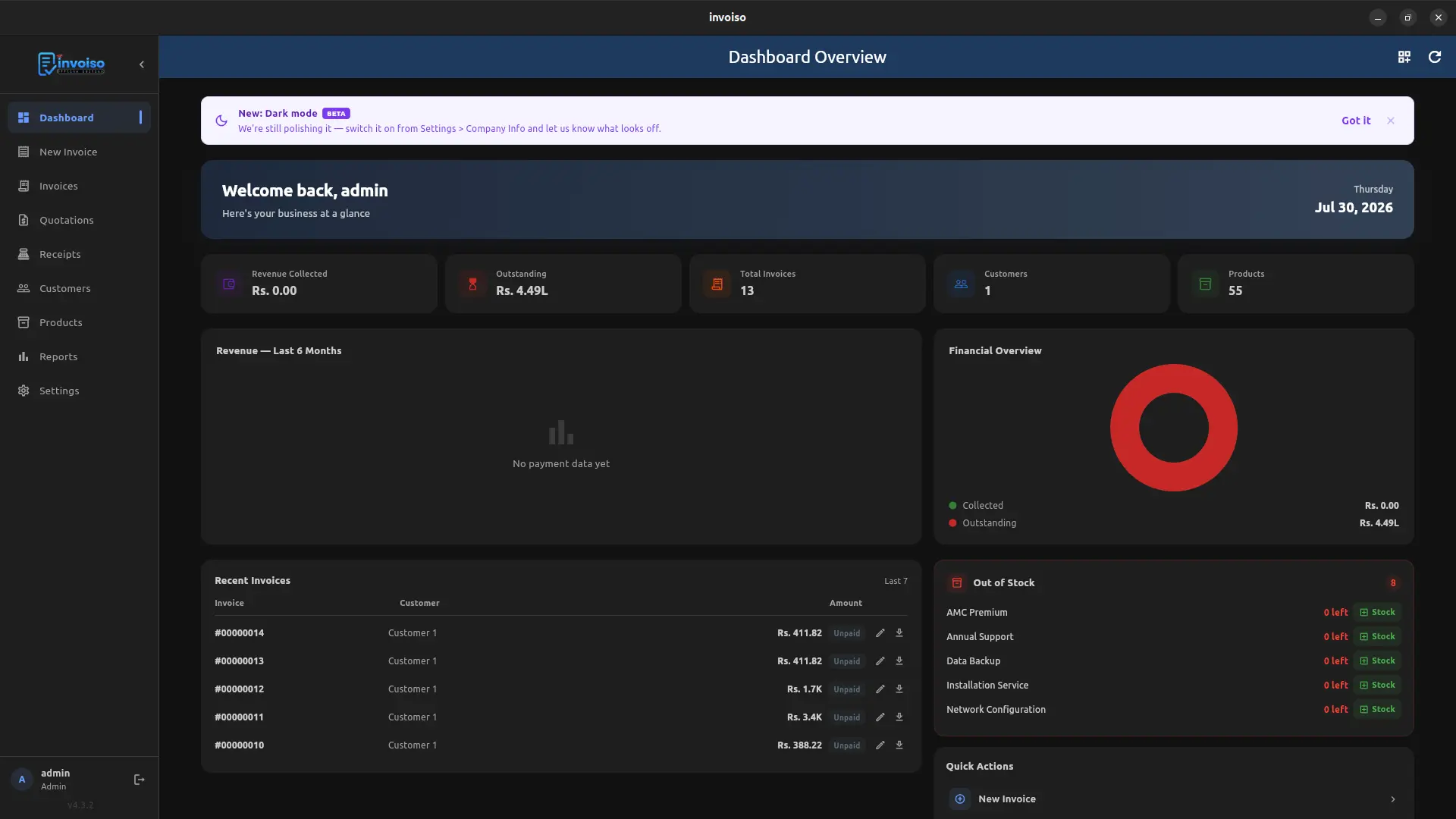
Launch it from the Start Menu or desktop shortcut. Sign in with username admin and password admin, then set your own password.
Double-click the downloaded .dmg file and drag Invoiso into your Applications folder.
Open Invoiso from Applications. If macOS blocks it, go to System Settings → Privacy & Security and allow Invoiso to run.
Use username admin and password admin, then set your own password.
Recommended. Fetches the latest release from GitHub and installs it (needs curl and sudo):
curl -fsSL https://invoiso.co.in/install.sh | bash -s -- --deb
Not on Ubuntu? Use the AppImage installer instead (no sudo needed):
curl -fsSL https://invoiso.co.in/install.sh | bash -s -- --appimage
For a downloaded DEB package:
sudo apt install ./Invoiso-*.deb
For a downloaded AppImage, make it executable and run it:
chmod +x Invoiso-*.AppImage
Find Invoiso in your app launcher. Sign in with username admin and password admin, then set your own password.
DEB packages are supported on Ubuntu 22.04 and 24.04. The AppImage runs on any 64-bit distribution and keeps your data in ~/.local/share/invoiso/.
Yes. Invoiso is free and open source. There is no subscription, no trial period and no account to create.
SmartScreen warns about apps that are not yet widely downloaded. Invoiso is open source and its code is public on GitHub. Click More info, then Run anyway to continue.
The default login credentials are username admin and password admin. You are asked to set a new password the first time you sign in.
Yes. Invoiso creates GST-ready PDF invoices for small businesses, with your company details, tax rates and totals, and it works fully offline.
No. After installation Invoiso works fully offline and your billing data stays on your own computer.
Use the DEB package on Ubuntu 22.04 or 24.04. On any other 64-bit distribution, use the AppImage, which runs without installation.
Still stuck?Read the docs·Contact support·Report an issue