An invoice that's out the door isn't the same as an invoice that's paid. The gap between the two — who owes what, how much came in, and what's still outstanding — is where most manual bookkeeping breaks down. Invoiso tracks that gap for you: every payment you record against an invoice updates its status and the business-wide outstanding balance automatically. Here's exactly how to use it.
What payment tracking covers
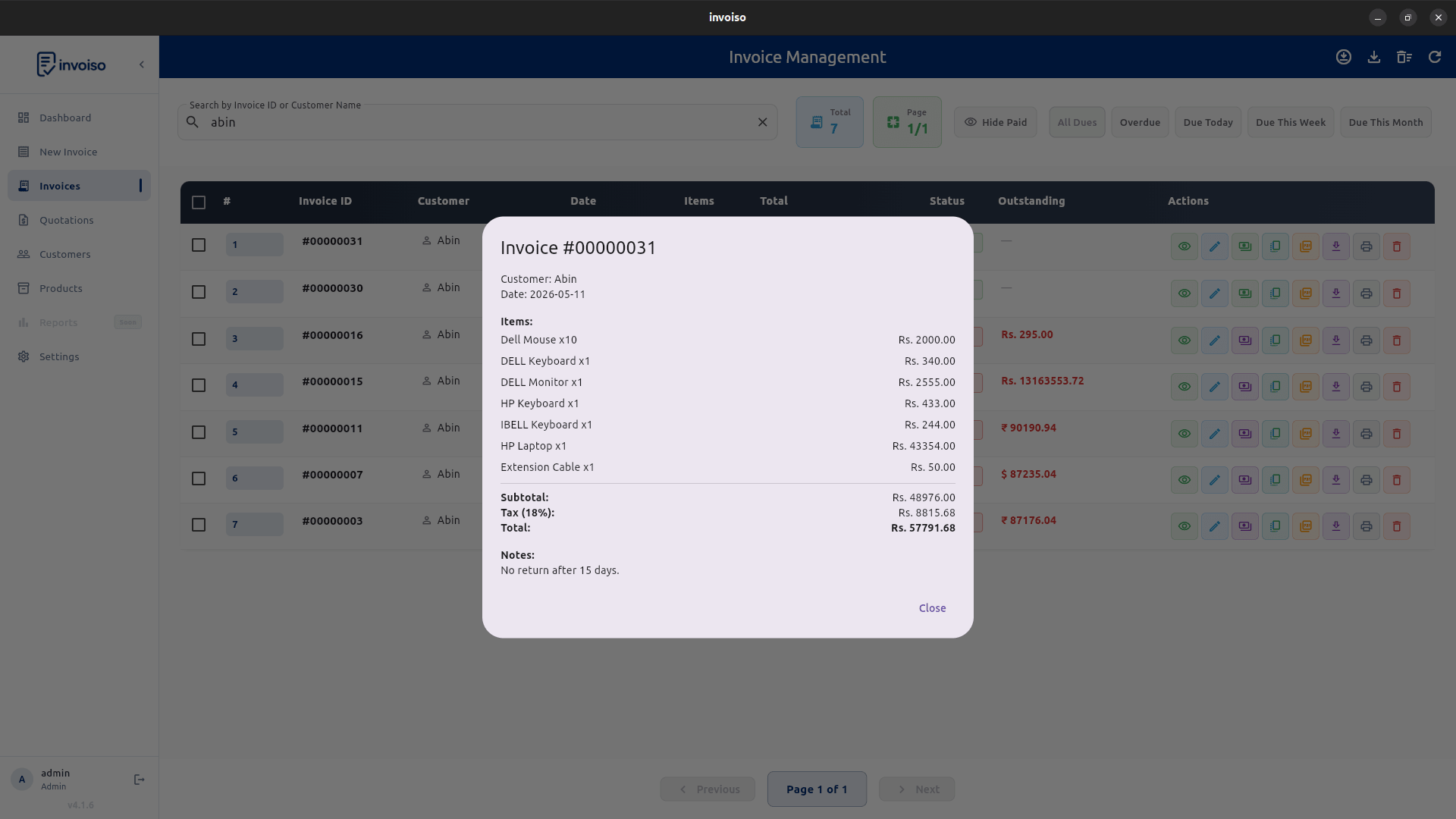
Invoiso lets you record a partial or full payment against any invoice. Each invoice carries a status of Unpaid, Partial, or Paid, shown as a colour-coded chip so you can scan a full invoice list and see payment state at a glance. The app calculates the outstanding balance automatically from the invoice total and the payments recorded against it — you never subtract it by hand.
How to record a payment, step by step
- Open the invoice. From the invoice list, open the invoice you're recording a payment against.
- Enter the payment amount and date. Enter the full total for a complete payment, or a smaller amount for a partial payment against a larger bill.
- Save the payment. Invoiso logs it and recalculates the outstanding balance for that invoice immediately.
- Watch the status update. The invoice's status chip switches to Partial once any payment is recorded short of the full amount, and to Paid once the balance reaches zero.
- Download a receipt. Generate a PDF receipt for the payment you just recorded, so the customer has proof of that specific transaction, not just the original invoice.
- Repeat for further instalments. If a customer pays in stages, record each payment as it arrives — the outstanding balance narrows with every entry until it's fully settled.
Reading the status chips
Unpaid means no payment has been recorded yet. Partial means some amount has come in but the balance isn't zero. Paid means the full invoice total has been received. These three states are the fastest way to triage a long invoice list without opening each one — sort or filter by status and you immediately see which customers still owe money.
Seeing outstanding balances across the business
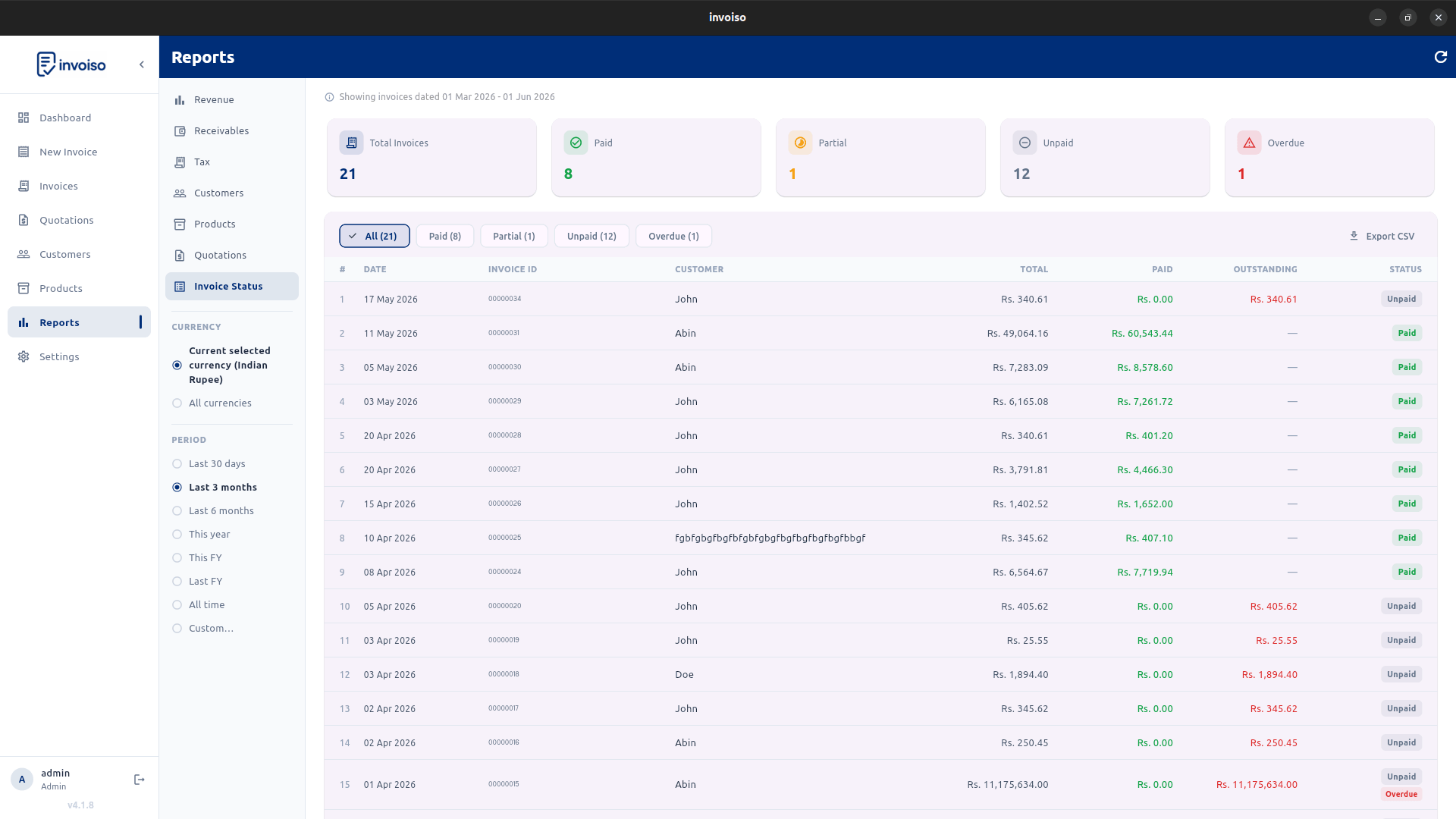
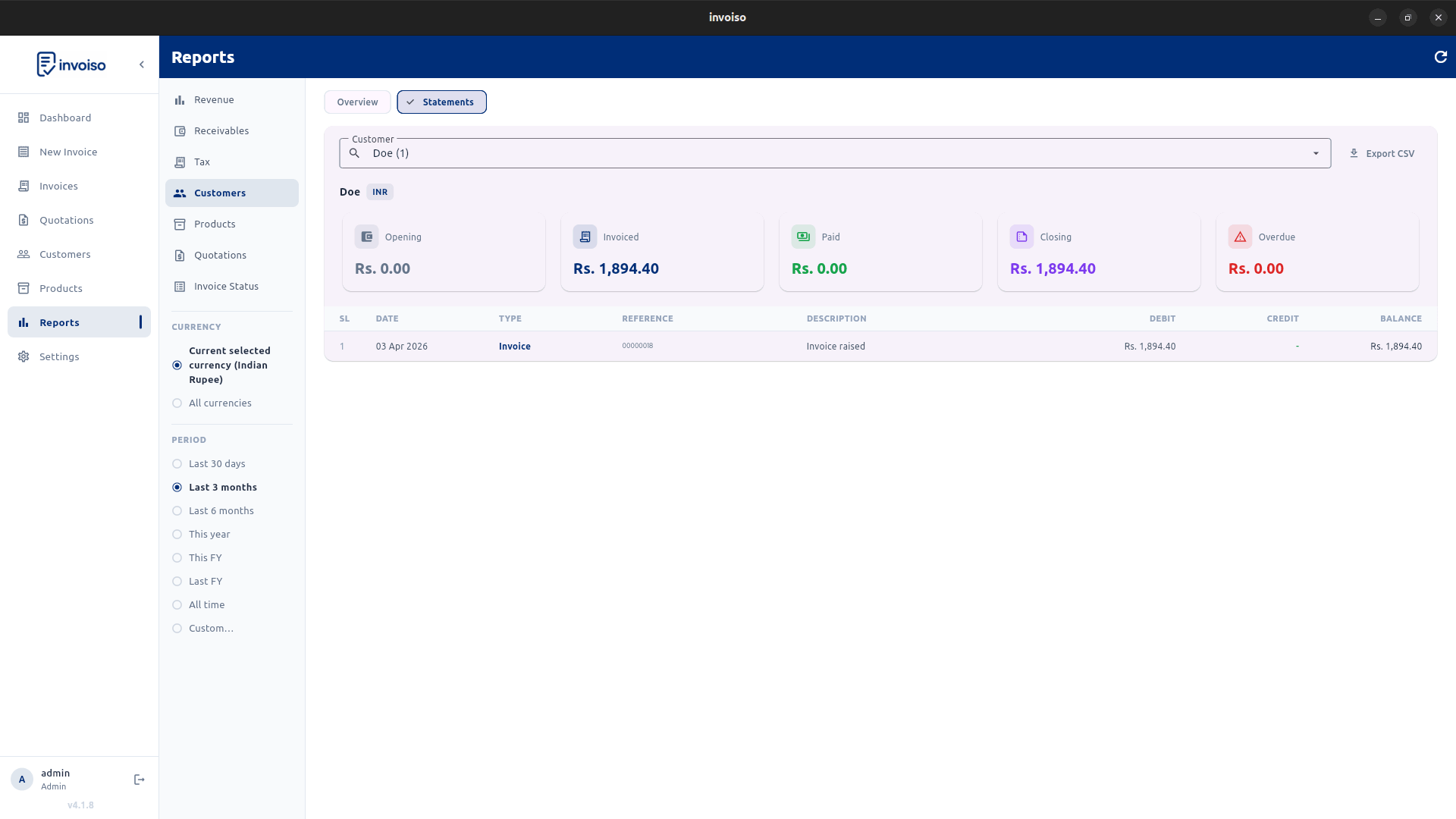
Open the Invoice Status Report to view every invoice filtered by paid, unpaid, or overdue, using the built-in filter chips — useful for a weekly check on what's still pending rather than scrolling the full invoice list. For a per-client view, open the Customer Statement Report, which shows total revenue and the current outstanding balance for each customer, so you know exactly who to follow up with and how much is due.
Handling a partial payment correctly
Partial payments are the most common source of confusion in manual bookkeeping, because a paper register only has room for "paid" or "not paid." Invoiso treats a partial payment as a first-class state rather than a workaround: record the amount that actually came in, and the app carries the remaining balance forward on the same invoice. If a customer later pays the rest in a second instalment, record that as a second payment entry against the same invoice rather than editing the first one — that way you keep an accurate log of when each amount arrived, which matters if a customer later disputes what they paid and when.
Why this beats a spreadsheet
A spreadsheet tracks payments only as accurately as whoever last updated it, and it doesn't recalculate the invoice's status chip or flag which customers have gone quiet on an overdue balance. Because Invoiso ties every payment to the specific invoice it belongs to, the outstanding balance shown on an invoice, in the Invoice Status Report, and in the Customer Statement Report always agree with each other — there's no separate ledger to keep in sync by hand, and no risk of the spreadsheet and the invoice list drifting apart after a few months of billing.
Practical habits that keep balances accurate
Record a payment the same day it arrives rather than batching a week's worth from memory — recall errors are where outstanding-balance mistakes usually start. If a customer pays by bank transfer with a delay before it clears, note the payment date as the date funds actually arrived, not the date promised. And run the Invoice Status Report at a fixed weekly time, so chasing unpaid invoices becomes a habit rather than something you remember only when cash is tight.
Invoiso tracks partial and full payments, status, and outstanding balances offline, with PDF receipts per payment. See free GST billing software or download the desktop app.