Why dashboard layouts matter
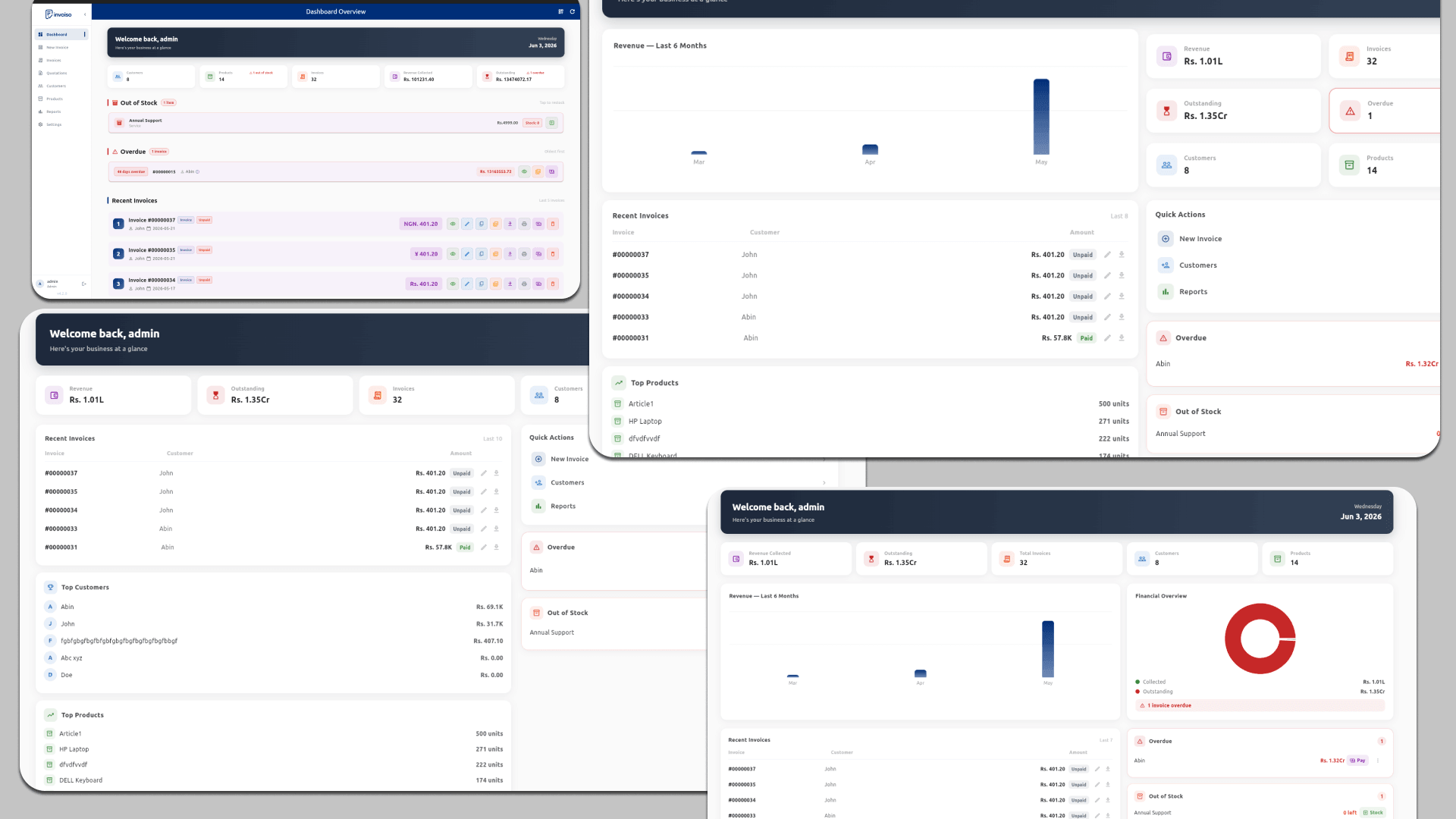
Not every business needs the same information front and centre. A shop owner wants to see today's invoices quickly. A consultant wants to track outstanding balances. A freelancer wants a clean revenue summary at a glance. Invoiso ships four dashboard layouts — Default, Classic, Bento, and Simple Feed — so you can pick the arrangement that matches how you actually work, without losing access to any of the underlying data.
Step-by-step: how to switch layouts
- Open the dashboard. Log in to Invoiso — the dashboard is the first screen you land on.
- Find the layout toggle. Look in the top-right corner of the dashboard screen, next to the date and quick-action icons.
- Click to cycle layouts. Each click moves to the next layout in the set: Default → Classic → Bento → Simple Feed, then back to Default.
- Check the change applied. The dashboard re-renders instantly — no page reload, no loss of data or scroll position.
- Leave it. Your choice is saved locally and automatically. The next time you open Invoiso, it remembers which layout you used last, even after a restart or an app update.
What each layout shows
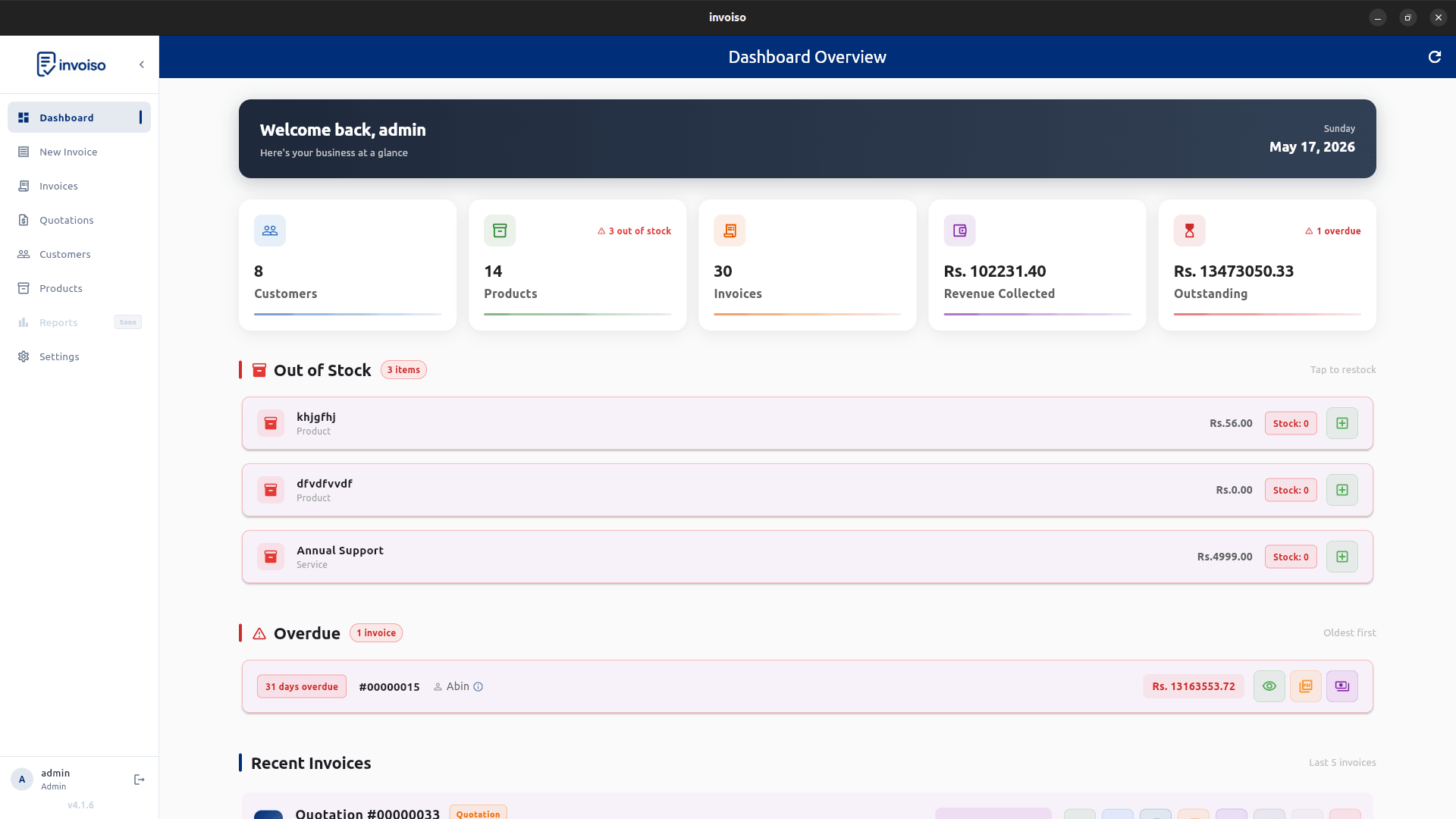
All four layouts pull from the same invoice, customer and revenue data — the difference is arrangement and density, not information.
- Default — the standard balanced view: revenue KPI cards across the top, recent invoices below, quick-action buttons on the side.
- Classic — a traditional list-first layout, closer to a spreadsheet-style overview, for anyone who wants invoice rows front and centre with minimal chart clutter.
- Bento — a grid of individually sized cards (the "bento box" style), useful when you want revenue, outstanding, top products and recent activity all visible without scrolling.
- Simple Feed — a single scrolling feed of recent activity and alerts, stripped of side panels, for a lightweight, distraction-free view — often preferred on smaller screens.
Watch it in action
The video below shows how to switch layouts and what each one looks like in the live app.
Choosing the right layout for your workflow
If you're checking the dashboard dozens of times a day between other tasks, Simple Feed keeps the noise down. If you're doing a weekly business review and want everything visible at once, Bento avoids scrolling. If you're used to older billing software and want something familiar, Classic is the closest match. Default is the safe middle ground and what most users stick with. There's no wrong choice — layout switching costs nothing and can be changed as often as you like.
No setup needed
Layout switching requires no configuration. It works from the first launch. There is no hidden setting or preference screen — just the toggle button on the dashboard itself. All four layouts are included in the free download for Linux and Windows, with no premium tier gating any of them.
Troubleshooting
If the layout toggle doesn't seem to change anything, confirm you're on the latest version of Invoiso from the changelog — the four-layout system (Default, Classic, Bento, Simple Feed) shipped together with multi-currency support in a specific release, so an older install may only have the single original layout. Updating resolves this.
If your saved layout preference resets after an update, it's worth checking the backup and restore screen to confirm your local settings database wasn't reset during installation — restoring from a recent backup brings preferences back along with your invoice data.
Frequently asked questions
Does switching layouts affect my invoice data? No. Layouts only change how existing data is arranged on screen — nothing is recalculated, hidden, or deleted when you switch.
Can different layouts be set per user, on a shared machine? Layout preference is currently saved at the application level on that installation, not per login, so all users on one machine see the same layout until someone changes it again.
Which layout loads fastest? Simple Feed, since it renders the fewest widgets. The difference is only noticeable with a very large invoice history.
Download Invoiso free for Linux or Windows and try all dashboard layouts. No subscription required.