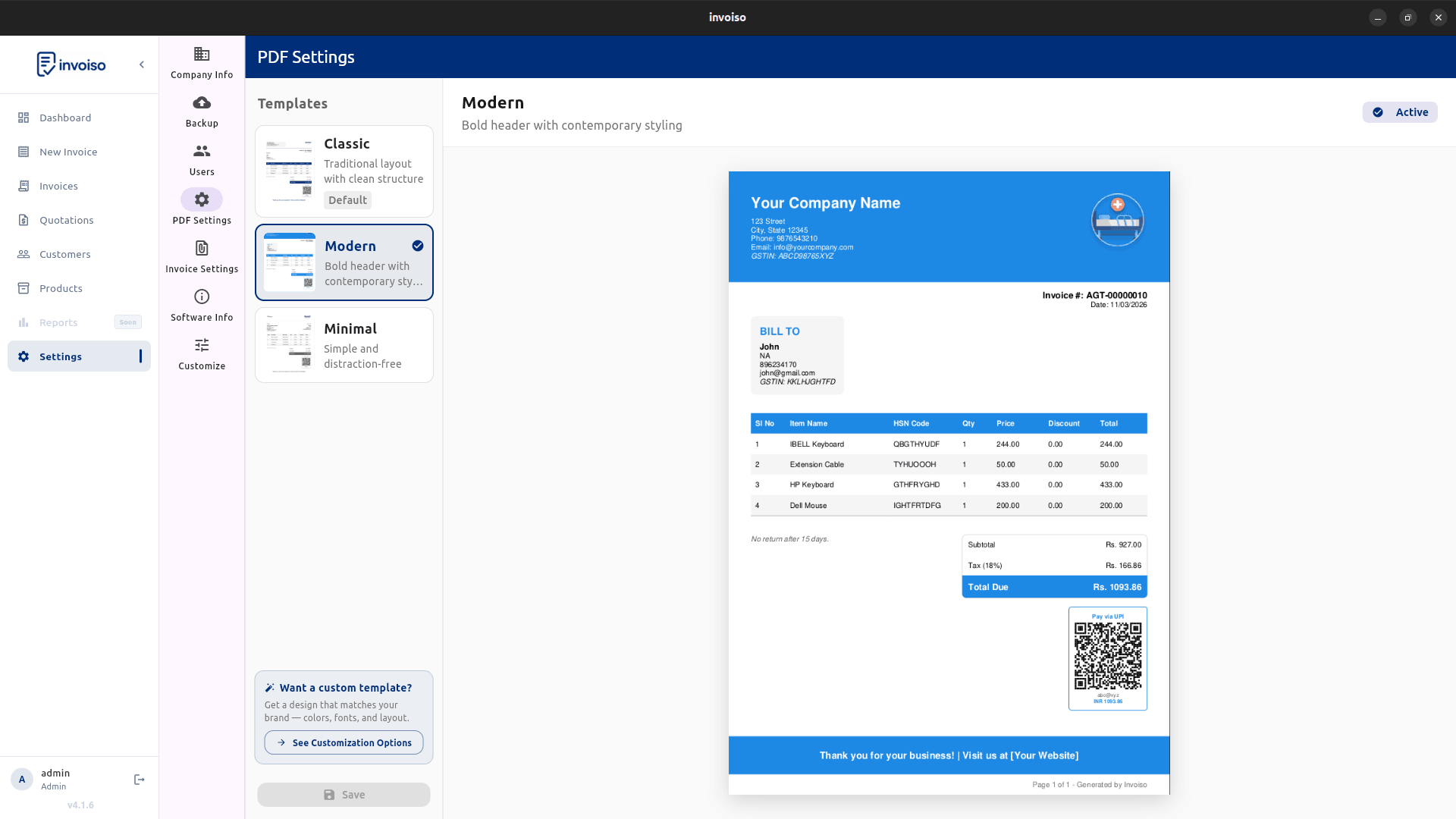
Your invoice is often the last thing a customer sees before paying. A clean, professional PDF that matches your brand does more than look good — it signals that your business is organised and trustworthy. Invoiso gives you five templates and a set of customization controls so you can get the right output without any design work.
Choose a template
Invoiso has five PDF templates to choose from:
- Classic — clean two-column layout, works well for most businesses
- Modern — bold header bar with strong brand color presence
- Minimal — generous whitespace, understated and elegant
- Executive — premium dark header, high-contrast design
- Compact A6 — fits A6 paper, designed for POS and receipt printing
Switch templates from Invoice Settings — the change applies to all new PDFs instantly. Existing invoices retain the template they were generated with.
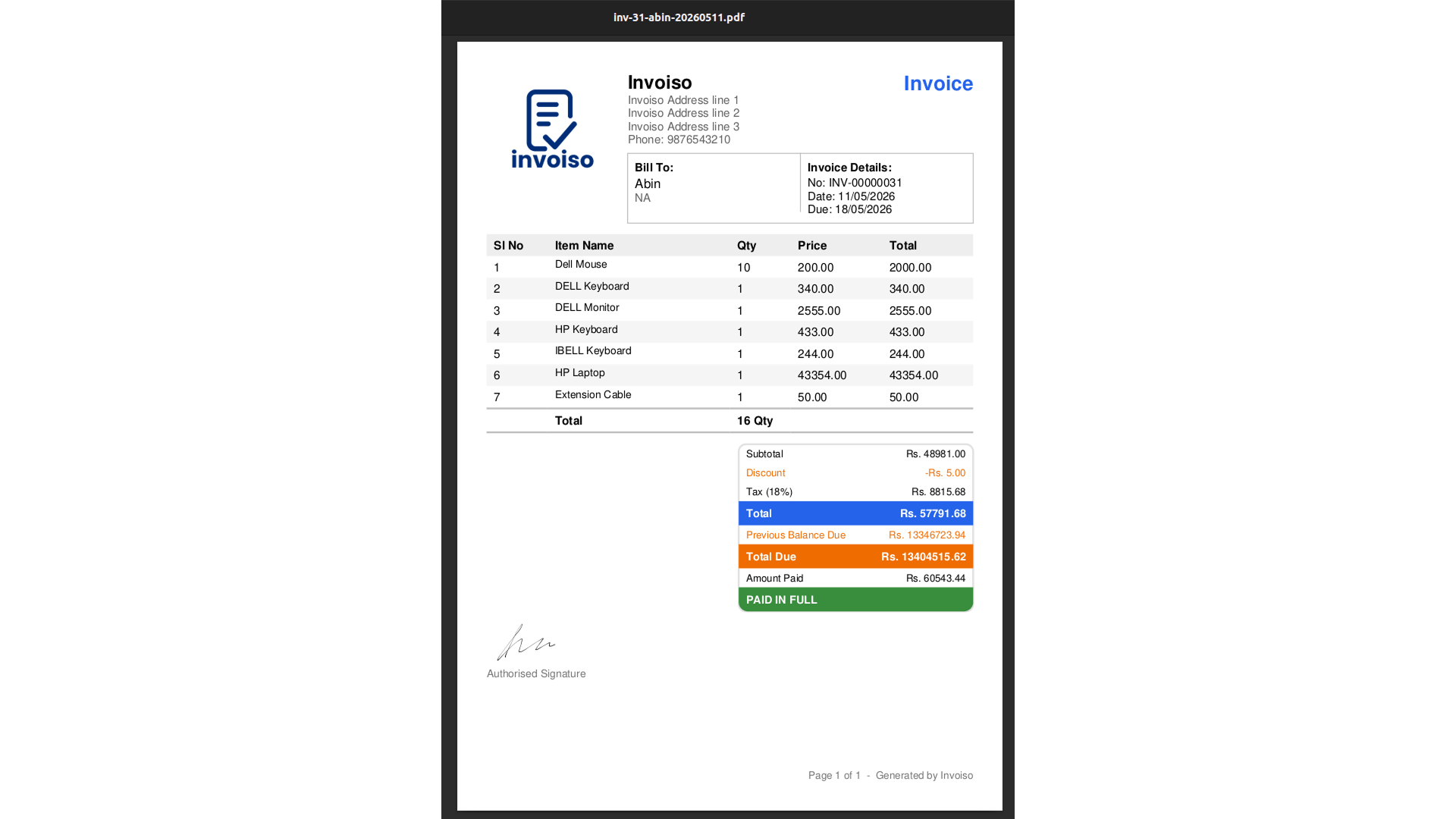
A6 compact template
A6 is half an A4 sheet — 105×148mm. It is the standard size for thermal receipt paper and the preferred format for shops, cafes, and retail counters that print invoices on-site. Invoiso's Compact A6 template fits all essential fields — customer, items, tax, total, and payment details — within that footprint without cramping the layout. If your printer loads A6 rolls or cut sheets, this template outputs a clean, readable receipt-sized invoice.
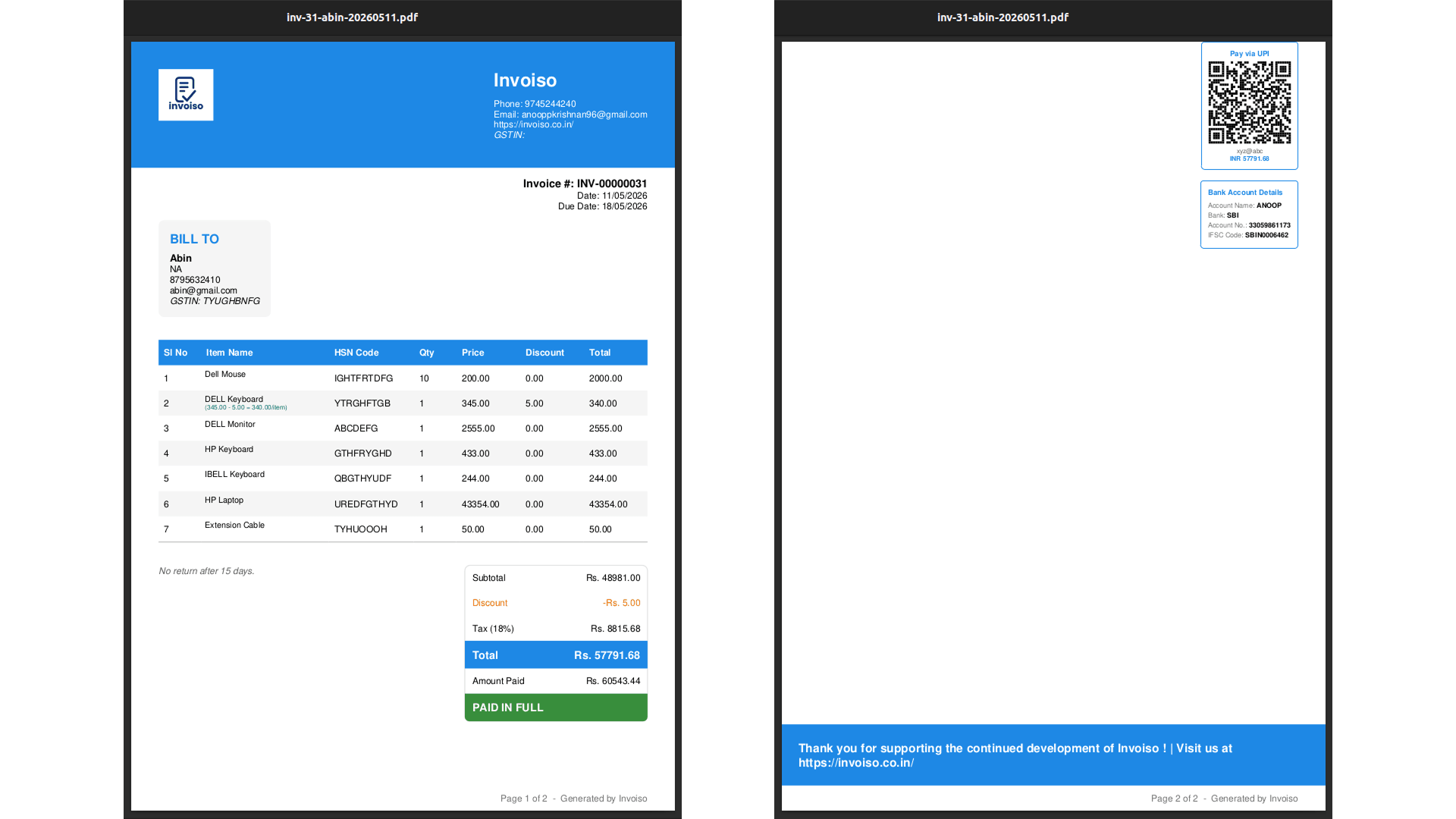
Custom theme colors
Every template inherits your brand color. Set your primary color once in Customization settings — it updates the header, accent lines, and total bar across all templates simultaneously. You do not need to configure colors per template. One color setting, consistent output across all five layouts.
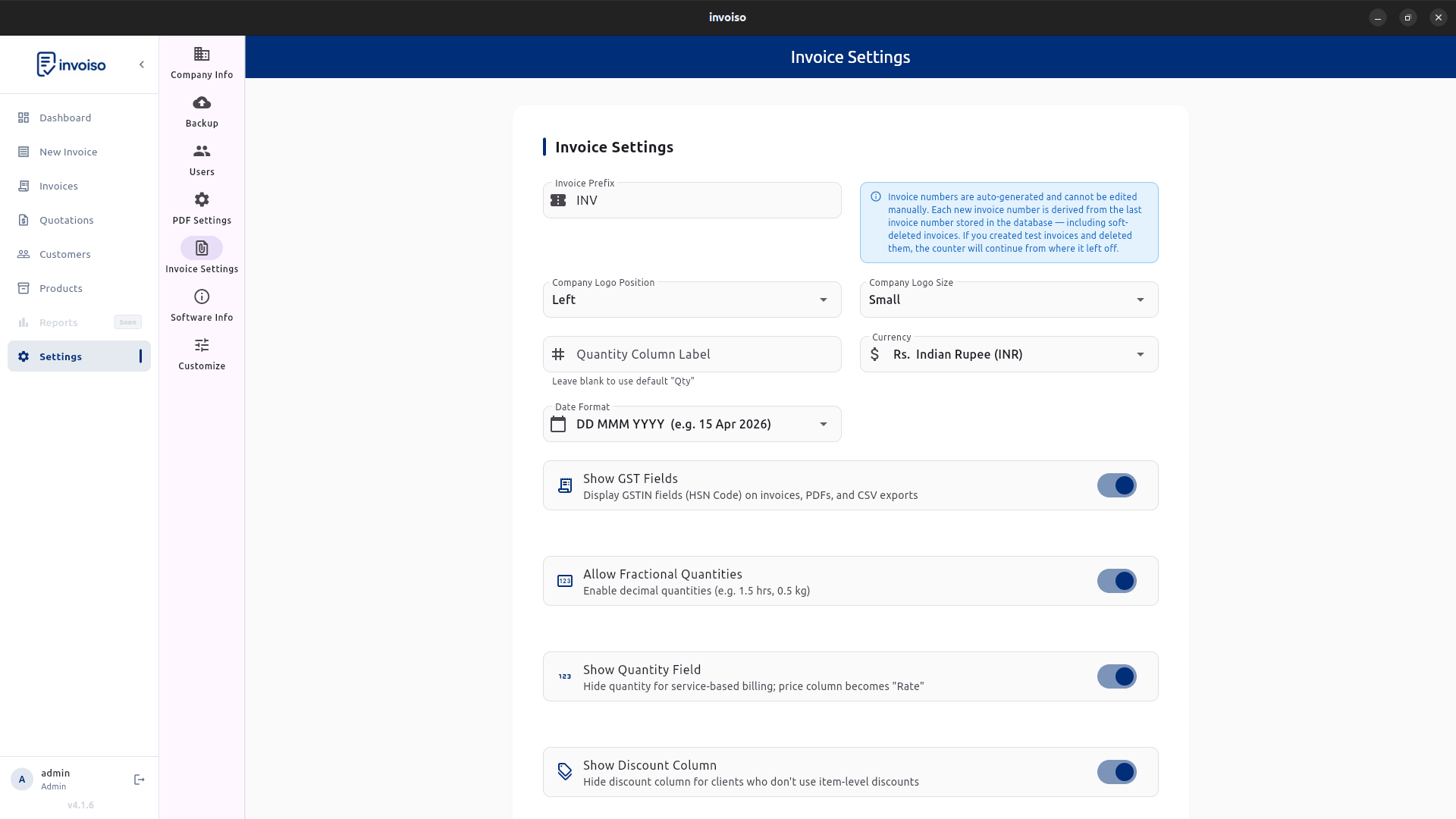
Customize invoice fields
Toggle which fields appear on your PDF. Fields you can control include GSTIN, HSN code, due date, quantity label, UPI QR code, notes, and bank account details. Remove fields you do not need — a freelancer billing for hours does not need HSN codes, and a service business may not need UPI QR. Set a custom quantity label: "Hrs" for hourly services, "Nos" for product count, "Days" for day-rate billing. The label appears in the items table header on every PDF.
Digital signature
Upload your signature image in Settings — PNG or JPG, any reasonable size. It appears in the signature block on every generated PDF. This adds a signed, authorised feel to your invoices without the step of printing, signing, and scanning. For clients who expect a signed document, this covers the requirement in a fully digital workflow.
Logo and company info
Company name, address, phone, email, and GSTIN appear in the header of every template. Upload your logo — PNG or JPG — and it appears top-left on all five templates. The logo scales automatically to fit the header area. Keep the file under 1MB and use a transparent-background PNG for the cleanest result on all template backgrounds.
All templates and customizations are free. Download Invoiso for Linux or Windows — download page or browse the customization guide.